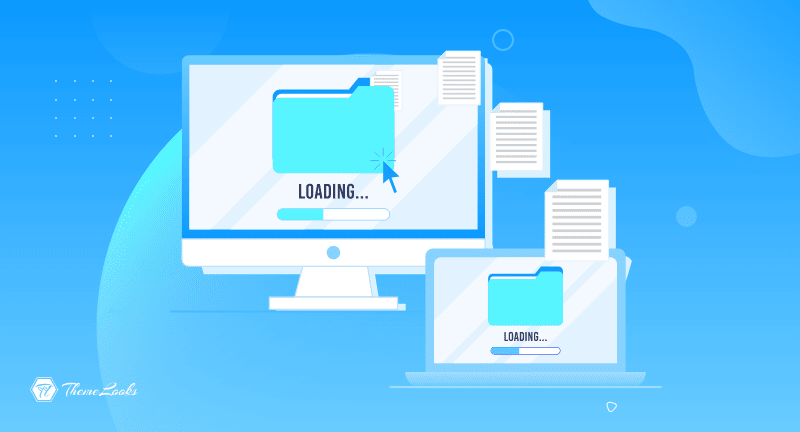
Content Migration to WordPress is like upgrading from an old, slow phone to a brand-new smartphone. It makes everything easier, faster, and more flexible!
This process is called Content Migration to WordPress, and it’s one of the smartest steps you can take to make your website better. Whether you’re switching from an old website, a custom system (CMS), or a basic blog, moving your content to WordPress can improve your site’s performance, security, and SEO rankings. It’s like giving your site a fresh start—with more control and better tools.
But be careful: if the web migration process isn’t planned well, things can go wrong. You might end up with broken links, missing pages, or even lose your place on Google search results. That’s why having a clear step-by-step migration plan is so important.
In this guide, we’ll walk you through the 5 most important steps to move your content to WordPress the right way. You’ll learn how to prepare your content, protect your SEO, and even how to block IP addresses in WordPress to keep bad bots or hackers away during the move. We’ll also help you decide whether to migrate manually or use smart tools like plugins—and share expert WordPress tips to help your new site perform its best.
Table of Contents
WordPress isn’t just for blogging anymore. While it began as a simple platform for writers, it’s now the world’s most popular website builder—powering over 43% of all websites. Nearly half the internet uses it because it’s simple, flexible, and lets you build anything from blogs to business sites or online stores. You can design with easy drag-and-drop tools, no coding needed.
One major reason to migrate your site to WordPress is its strong SEO features. If you’re moving from a custom-built system, creating a solid website content migration plan is essential. Whether it’s an SEO migration for a custom CMS or a complete custom CMS SEO migration, a well-structured approach helps maintain your Google rankings. Knowing how to move a website to WordPress step-by-step ensures better performance, easier updates, and stronger SEO results.
The migration of information between systems is known as content migration. As if you were moving from one house to another, it is just like that. In other words, you risk losing something crucial if you do not take the time and patience to perform this process correctly.
By migrating content, you can completely revamp your website. Your information can be reorganized, written, and structured differently. A last-minute decision also carries a high risk. Preparation should begin as soon as you decide it’s time to upgrade your CMS.
It may be necessary to migrate to a different website for various reasons. Our WordPress experts believe that content migration may be the best solution for businesses that are experiencing downtime of hosting, for which their infrastructure is not meeting their digital strategy, or for the new demands for new projects.
Let’s take a look at a few reasons why companies of all sizes use WordPress before discussing how to prepare for a successful WordPress content migration:
A content management system like WordPress is undoubtedly the most popular. As previously believed, the platform can be much more than a blogging platform. Many companies are now able to use WordPress to meet their goals.
So, without any doubt, WordPress is the best solution for online presence regardless of the type of business (small to medium, or a giant one) you have right now.
Moving your website to WordPress might sound like a big job—and it kind of is—but if you plan it right, it becomes a lot easier. Migrating isn’t just about copying blog posts from one site to another. It’s more like moving to a new house: you need to know what to bring, where to put everything, and how to keep your stuff safe during the move.
In this section, we’ll break down the 5 most important steps to move your content to WordPress without losing anything important. Plus, you’ll learn how to keep your site safe, easy to use, and ready to show up on Google.

Before you do anything else, sit down and ask yourself:
Why am I moving to WordPress?
You might want to redesign your website, improve how it works, or make it easier to find on Google (that’s called SEO). Some people move from an old system like a custom CMS (Content Management System), and others just want to make their site faster or more flexible.
Here’s what your website migration plan should include:
If you’re switching from a custom or private CMS, make sure you outline a clear SEO migration plan. That way, you won’t lose your place in Google search rankings.
This step is like packing up your house before you move. Know what you’re taking, what you’re throwing away, and where everything will go.

Before moving your website, it’s super important to make a full list of everything you have. This is called a content inventory. Think of it like packing before you move houses—you need to know what you’re taking, what you’re throwing away, and where everything will go.
Start by listing out:
Please note that the categories and tags for your current and future websites may need to be renamed if they differ. Another important factor to consider is the URL structure. In order to make the URLs consistent, you may have to update them.
Here’s what to check as you go:
A clean, organized site is much easier to move—and it looks better to your visitors once it’s live on WordPress. You can use automated content migration tools or a WordPress plugin to move things faster, but it’s always smart to double-check each page manually to make sure nothing goes wrong.
And while you’re cleaning up, use the WordPress Content Editor to format and organize your posts. A clean layout with proper categories and tags helps people (and search engines like Google!) find your content more easily.
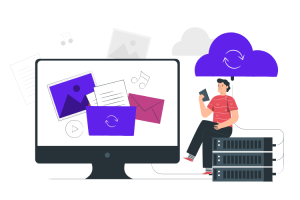
Before you start moving anything, back up your site. A backup is like saving all your work in case something goes wrong—just like hitting “save” on an important school project. You should back up:
You can do this by installing the plugin Updraft Plus, Duplicator, or All-in-One WP Migration. These WordPress plugins make it super easy to create backups with just a few clicks. After installing the plugin, choose where to save your backup—cloud services like Google Drive or Dropbox work great. And remember, it’s smart to keep a few copies in case you ever need to go back.
While you’re working on this step, it’s also a good time to protect your site. Sometimes hackers or bots try to attack during a move. To stop them, you can block IP addresses in WordPress. Installing a security plugin like Word-fence gives you a firewall that blocks unwanted traffic and keeps your site safe while everything is being moved.
Once everything is moved, backed up, and checked for SEO, it’s time to launch your new WordPress site.
Here’s what to do next:
If you have a shop or blog, test everything on your WooCommerce site and make sure affiliate links work properly.
Once your site is live, promote it using smart social media marketing tips. Share posts on Instagram, Facebook, and Twitter. Create a teaser or video about your new site. Maybe even team up with influencers to help spread the word.

One big danger in moving a site is losing your SEO rankings. That’s how people find you on Google, so you don’t want to mess that up.
Here’s how to keep your SEO strong:
If you’re running a WooCommerce site, Affiliate Blog, or rely on search traffic, keeping your SEO in good shape is a must. This is also a great time to improve the readability of your content. Break long paragraphs into shorter ones, use headers, and add bullet points.
This not only helps SEO but also makes your site easier for people to read.
| Feature | Manual Migration | Automated Tools (Plugins) |
| Time Required | High | Low |
| Technical Skills Needed | Advanced | Basic to Moderate |
| Risk of Errors | Higher | Lower with QA and staging |
| Control Over Details | Full Control | Partial – Depends on Plugin |
| Best For | Custom CMS, Enterprise Sites | Bloggers, Small to Medium Businesses |
| Plugin Example | N/A | All-in-One WP Migration, Migrate Guru |
Choosing between manual and automated methods depends on your site complexity and budget. For intricate website content migration plans, manuals may offer better precision.
Once your WordPress site is live, it’s time to optimize for performance and SEO:
Don’t forget to revisit your blog posts for SEO and ensure proper internal linking to newer articles.
All of these can hurt your SEO and user experience.
Migrating your website doesn’t have to be scary. With a clear content migration plan, the right tools, and a focus on SEO preservation, you can launch a WordPress site that’s faster, better optimized, and much easier to manage. From improving your WordPress content management, setting up a clean WordPress landing page, to learning how to block IP addresses in WordPress, each step plays an important role in making your migration smooth and successful.
To help you along the way, we’ve put together a WordPress-related blog full of helpful tutorials, beginner tips, and expert strategies to level up your skills. If you’re an enthusiast of WordPress, then you may take a look at 6 Essential Reasons to Use WordPress for Your Website. And also, why you need to avoid nulled WordPress themes and plugins: 9 reasons. These posts offer even more insight into getting the most out of your WordPress experience—especially if you’re starting fresh after migration.
Use this guide as your roadmap to take control of your web presence and unlock the full power of WordPress. If you’re ready to take action, download our Content Migration Checklist to guide your migration from start to finish!
Content migration means moving everything from your old website—like blog posts, images, and pages to a new platform, such as WordPress. It’s important because it helps make your website faster, easier to manage, and ready for the future. If you’re using an old system, like a custom CMS, moving your content through a proper content migration process ensures you don’t lose any important data and your site keeps working well.
CMS content migration is about transferring content from one content management system, like a custom CMS, to another—WordPress, for example. Web content migration is a broader term that includes moving your whole website, including design and settings, not just the content. Both need careful planning, which is part of a good website migration strategy. Having a website migration mitigation plan helps avoid problems like broken links or lost pages during the move.
When moving your site to WordPress, you can do it manually or use automated content migration tools. Automated tools are WordPress content migration plugins designed to make the process faster and easier. Popular plugins like All-in-One WP Migration or Migrate Guru help move your files and database without much technical knowledge. These tools are helpful, but it’s still important to check everything carefully to avoid mistakes.
Your website migration plan should list what content you want to keep, what to delete, and how to move everything safely. It should include a timeline and who will do what if you have a team. You also need to pick the right plugins, like those for SEO or backups, and make sure to include an SEO migration plan if you’re switching from a custom CMS. This helps protect your rankings on Google after the move.
During migration, your site can be vulnerable to hackers or spam bots. To keep it safe, you should learn how to block IP addresses in WordPress. Plugins like Wordfence Security help you block suspicious visitors and stop attacks. Keeping your site secure during the migration process is very important so you don’t lose any data or get hacked.
Your SEO can be affected, but if you follow the right steps, your WordPress SEO can improve. You need to make sure all your old URLs are redirected to the new ones with 301 redirects. Keeping your page titles and meta descriptions the same helps Google understand your new site. Fixing broken links and using SEO plugins like Yoast SEO or Rank Math will protect and even boost your search rankings. This is especially important if you have an affiliate blog or WooCommerce site.
The five key steps are: making a detailed plan, listing and organizing your content, backing up your entire website, setting up redirects to keep your SEO intact, and finally launching your new WordPress site with all features tested. Each step helps prevent problems and ensures your visitors have a smooth experience.
If your site is small or you don’t have much technical experience, using an automated content migration WordPress plugin is easier and faster. Plugins like All-in-One WP Migration handle most of the work for you. However, if you’re moving from a custom CMS or have a complex site, manual migration gives you more control but requires more skill and time.
Some useful tips for WordPress migration include always backing up your website before you start, organizing your content with the WordPress Content Editor, and making your content easy to read with short paragraphs and bullet points. Writing highly clickable WordPress headline will help your new posts get more visitors. Don’t forget to test everything, especially if you use WooCommerce or run an affiliate blog.
Yes! If you don’t want to handle the migration yourself, there are WordPress content migration services that do all the hard work for you. These experts plan, move, and test your site to make sure everything works perfectly. Hiring a service can be a good idea if your site is big or uses a custom CMS.
After migration, you can tell it was successful if all your pages load correctly, your SEO rankings stay the same or improve, and your site runs fast. Test all features, like blog posts, images, and online stores, to make sure they work properly. Also, check that Google Analytics and Search Console are tracking your visitors and search performance.
Just fill up the contact form to get a free consultancy from our expert. We would be happy to answer you.
ThemeLooks – YouTube – Facebook – Linkedin – Twitter

Mohammad Nur Alam is a Technical Content Writer at ThemeLooks Ltd., specializing in WordPress, SaaS, SEO, and web development. He writes practical tutorials, product reviews, and technical guides that help users make the most of WordPress tools and plugins. Passionate about digital marketing and emerging technologies, he enjoys creating helpful content and staying up to date with the latest industry trends.