To protect your website, Block IP Address in WordPress and keep it safe from spam, hackers, and bots especially with the rise of brute-force login attempts and unwanted traffic. Running a WordPress site means you must constantly maintain its security. Whether you run a Woo-commerce site, a blog, or an affiliate website, blocking harmful IPs helps protect your site, improve its performance, boost WordPress SEO, and increase trustworthiness.
In this comprehensive guide, we’ll walk you through different ways to block IP addresses in WordPress, including manual methods, plugin-based solutions, and using the .htaccess file. Plus, we’ll share expert pro tips to safeguard your site and optimize your WordPress content management workflows.
Table of Contents
An IP (Internet Protocol) address is a unique string of numbers that identifies each device connected to the internet. IPs come in types like static, dynamic, public, and private. Spammers, bots, or hackers often use these IPs to flood your site with fake login attempts, spam comments, scraping attacks, or even try to hack your site by guessing your password or exploiting vulnerabilities.
IP addresses are known as internet protocols. Four different types of IP addresses exist: static, dynamic, public, and private. IP addresses come in many types, and before blocking them, you need to understand what they are.
An Internet Protocol address identifies an internet-connected device, such as a mobile phone, a laptop, or a desktop computer.
In light of what you already know about IP addresses, let’s list why you might want to block IP addresses on your website. The following concerns might come to mind when considering this situation.
Whether you’re running a content blog, affiliate blog, or WooCommerce site, blocking malicious IPs ensures the safety of your WordPress content management system.
Hopefully, you now understand what the basic reasons are for blocking IP addresses in WordPress. We can now move on to identifying spammers on your website through different methods.
Before blocking those IP addresses, very obvious that you need to know how to identify them. The following list includes some of the common indicators by users that can be considered malicious to websites.
Well, among many these are some most happening incidents that can help you to identify unauthorized IP addresses and block them instantly from your WordPress site.
By blocking or banning these IP addresses you can make your site free from any cyber-attacks. Now, a question may pop up in your mind. That is, how to find these IP addresses? Here’s the process below:
In the first place, you’ll get the IP addresses you the commentators by entering them into your WordPress dashboard. What are you waiting for?
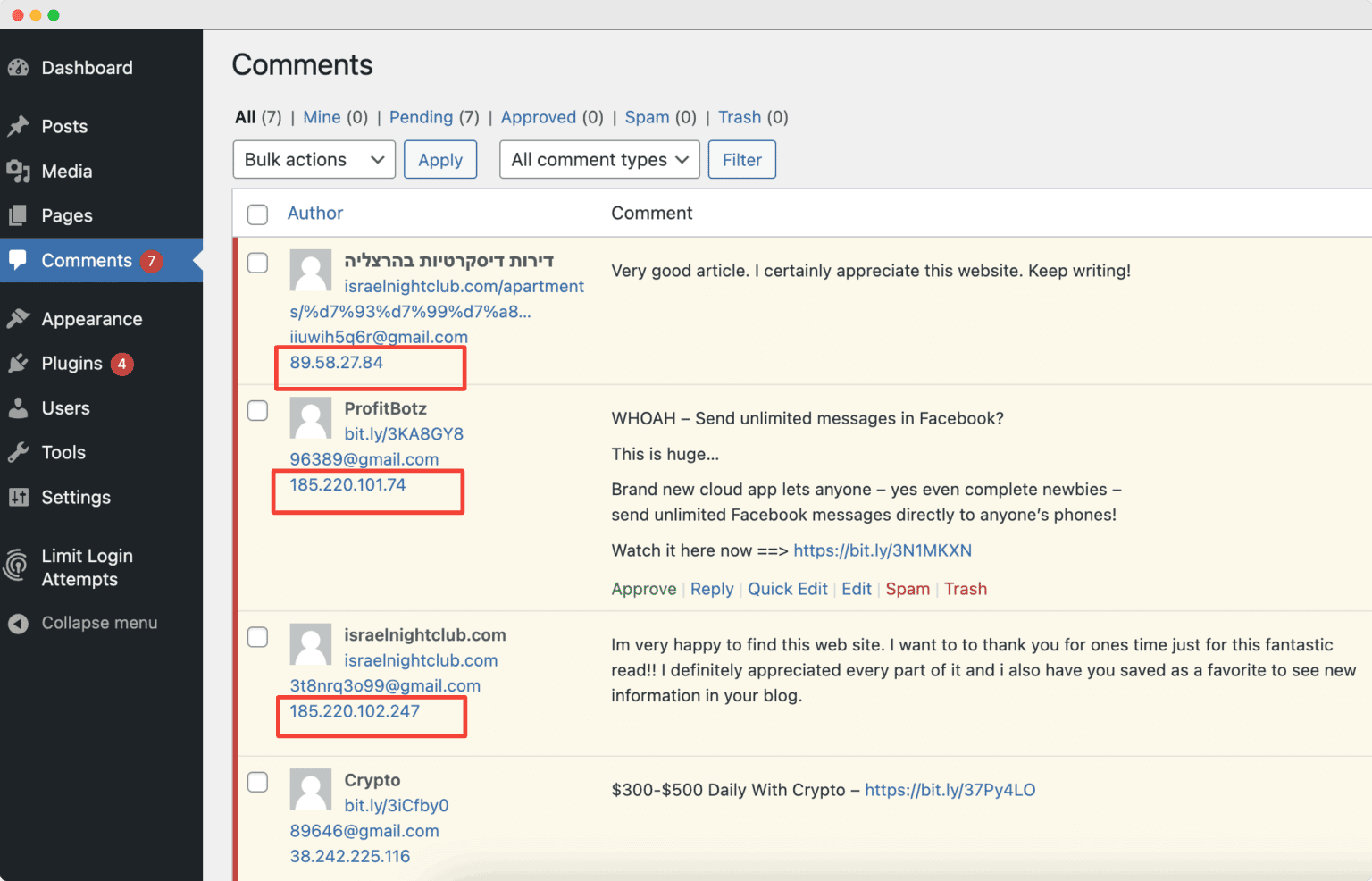
Go to the dashboard and hover your mouse over the left-side options. Find the Comments section and click on it.
As you can see, the list of all comments on your website’s various pages is visible here. You’ll find the IP addresses under each and every commentator’s name and email address.
Well, this was an easy way of identifying the IP addresses of possible spammers and attackers. But the most important thing is still obscure that you may question. What is that? That is, how do you know which commentators are actually the spammers who can be harmful to your website?
The answer is, accessing a raw access log! With help of this, you can find out those particular commentators who are repeatedly sending requests on your site. How to do this?
Go to your hosting account and head over cPanel dashboard. And, you’ll get raw access log there. You can download the access log details in a.gz format by clicking the domain name in the box below.
The file can be extracted using a program like Winzip. From the access log, you can see all the raw access logs in any text editor. If you would like to block IP addresses from your website, you can now note down the addresses somewhere.
This much simple is to find unauthorized IP addresses and ban/block them.
Before you can block an IP address on your WordPress site, you first need to know which IPs are causing trouble. Identifying bad or harmful IPs is like spotting the bullies in the playground—you need to know who they are before you can stop them. Here are some simple ways to find those unwanted visitors:
Every time someone leaves a comment on your blog or website, WordPress saves their IP address. To see these, just go to your WordPress dashboard and click on the Comments section. Here, you’ll see all comments with the visitor’s name, message, and IP address. If you notice the same IP address leaving spammy, fake, or rude comments again and again, that’s a good sign it might be malicious. You can write down those IPs to block them later.
Your website’s hosting provider (like Bluehost or SiteGround) gives you access to something called raw access logs. These logs are like a diary of every visitor who comes to your site, showing when they visited and what they looked at. To find them, log in to your hosting control panel, find Raw Access Logs, and download the latest file. Open this file using a simple text editor (like Notepad), and look for IP addresses that visit many times in a short period or seem suspicious. These repetitive visitors could be bots or hackers trying to cause trouble.
If you have the Wordfence security plugin installed, you can use its Live Traffic feature to watch who is visiting your site in real-time. This tool shows a list of IP addresses, what pages they are trying to visit, and whether they triggered any warnings. If you spot IPs making lots of rapid requests or trying to access protected areas (like your admin login), you can mark those as suspicious and block them easily.
Google Analytics and the Jetpack plugin give you detailed reports on where your visitors come from and how they behave on your site. If you see visitors from a certain country or region causing lots of quick bounces (meaning they leave immediately without interacting), it might be bot traffic. By spotting these patterns, you can decide whether to block IPs or entire countries that harm your site’s reputation or slow it down.
This way, you gather a list of suspicious IP addresses using simple tools that your hosting or WordPress already provides. Once you have that list, you’re ready to block those IPs and keep your site safer!
Blocking unwanted visitors is easier than you think. In WordPress, there are 3 easy ways to block IP addresses. Let’s explore each method to keep your site safe.
Save Changes – Click Save to apply the block.
Go to Dashboard – Log in to your WordPress admin panel.
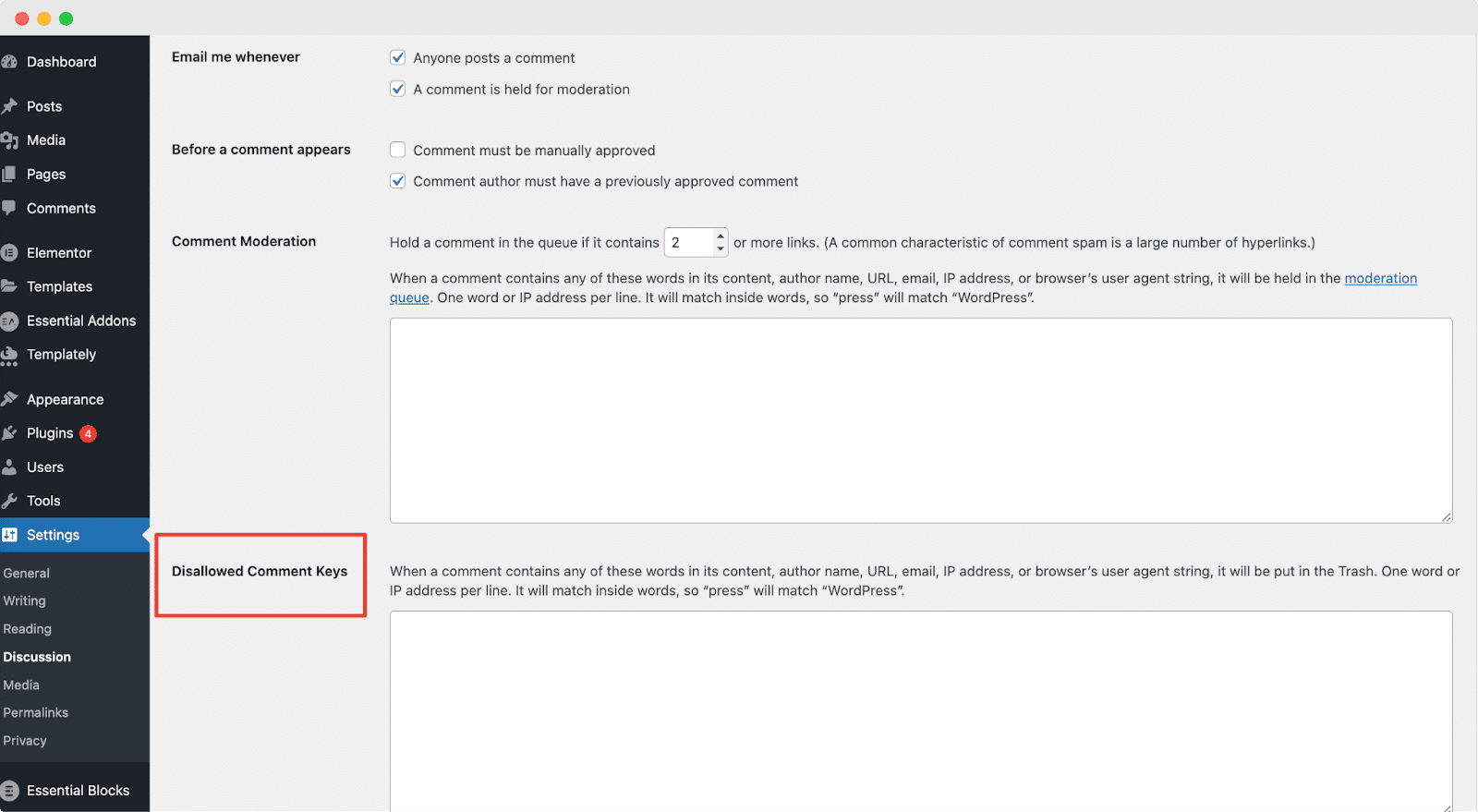
Go to Settings > Discussion – On the left menu, click Settings, then select Discussion.
Find Disallowed Comment Keys – Scroll down to this section.
Enter IP Addresses – Type each IP you want to block on a new line.
Once done with putting IP addresses click on Save to make everything secure.
Congratulations! Your WordPress website is now free from bots and spammers as you’ve successfully blocked the suspected IP address following the manual process.
If you’re using an Apache server, this method gives you deeper control.
# Block specific IPs
Always back up your .htaccess file before editing it.
Using a WordPress security plugin is one of the easiest and most effective ways to block unwanted IP addresses on your site. These plugins automatically detect suspicious activity, such as repeated login attempts or spammy comments, and can block harmful IPs for you without any manual work.
Popular plugins like CoxWall, Wordfence, and All In One WP Security offer powerful features that protect your website from bots, hackers, and other security threats.
Plugins simplify the process, offer automation, and reduce manual errors.
The following those plugins are the most useful ones to help you here.
Using the All In One Security & Firewall plugin, you can take your website security level to another level. This plugin can be considered the “Great Wall of China” in terms of providing security. It’s easy to use in spite of having high functionalities.
It will get your back with its scanning feature that scans vulnerabilities and take action with upgraded WordPress approaches. As a result, there is no option for any kind of security breach.

This is another popular WordPress plugin that protects WordPress site’s from spammers or bots. The plugin ensures high-security maintenance with its malware scanner and endpoint firewall.
It’s the ultimate safeguard for your WordPress site. From its Threat Defense Feed, your site can get upgraded firewall rules, malicious IP addresses, and malware signatures so that you can safeguard your WordPress site.
| Plugin Name | Key Features | Pricing | Best For | Pros |
| Wordfence | Firewall, live traffic, IP blocking, malware scanning | Free + Premium | Medium to large websites | Real-time protection, detailed logging |
| All In One WP Security | IP blacklisting, login lockdown, comment spam protection | Free | Beginners, small businesses | Easy to use, broad features |
| CoxWall | Login Protection, Hide Login, CAPTCHA, Firewall, Security Headers, File Integrity, Audit Log | Free | Beginners, small, medium, all types of businesses | High-level customization |
| iThemes Security | Geo-blocking, brute-force protection | Paid | Pro users and agencies | Modern dashboard, good support |
If most malicious traffic comes from specific countries, block them entirely.
Tools:
This is effective for sites with a local target audience where international traffic isn’t needed.
Why it matters:
Blocking spam IPs helps:
Clean, human-focused traffic improves engagement rates and conversion on landing pages and blog posts for SEO.
Securing your WordPress site in 2025 isn’t just about installing one plugin—it’s about implementing a layered defense. From blocking individual IP addresses manually to using powerful plugins like Wordfence and All In One WP Security, there are multiple ways to block IP addresses and protect your WordPress site.
Whether you’re trying to stop spam traffic, safeguard your WooCommerce store, or improve your site’s SEO, every method helps make your site stronger, faster, and more trusted. And that’s the core of smart WordPress content management.
Don’t wait until your site slows down or gets compromised. Start blocking harmful IP addresses today.
A malicious IP address is like a visitor who wants to harm your website. They might send spam comments, try to guess your password, or slow down your site by making too many requests.
In your WordPress dashboard, click on Comments. Every comment shows the visitor’s IP address. If you see the same IP leaving many spammy or fake comments, it might be a bad IP you want to block.
Raw access logs are files from your hosting provider that record every visit to your site. You can download these logs, open them with a simple text editor, and look for IP addresses that visit your site too often or do strange things. These might be bad IPs.
Yes! Plugins like Wordfence have a Live Traffic feature. This shows who is visiting your site right now, their IP address, and if they are trying to do anything harmful like repeated login attempts.
Google Analytics shows where your visitors come from and how they behave on your site. If visitors from one place leave quickly or cause problems, their IPs might be bad or spammy.
A high bounce rate means many visitors leave your site without clicking or reading more. This can happen if bots or bad IPs visit your site. It hurts your site’s SEO because Google thinks your site isn’t useful.
Yes! Bad IPs can make your site slower or appear untrustworthy to search engines. Blocking them helps improve your WordPress SEO by making your site faster and cleaner.
Look for IPs that leave many spam comments, try logging in multiple times, or visit your site too often. Your hosting logs and security plugins can help you spot these.
Sometimes, yes. If you get a lot of spam or attacks from a specific country, you can block IPs from that country using plugins. But be careful not to block real visitors if you want to reach a global audience.
Blocking IPs helps a lot, but some attackers use many different IPs. It’s best to combine IP blocking with other security tools like firewalls, strong passwords, and login limits.
It’s good to check your comments, access logs, and security plugin reports at least once a week to catch new bad IPs early.
If you block a good IP by mistake, you can unblock it later through your plugin or hosting settings. Always double-check IPs before blocking.
Not really! WordPress and hosting tools make it easy. Plugins like Wordfence show you the bad IPs, and with a few clicks, you can block them without technical skills.
Yes! Blocking bad IPs protects your WooCommerce site from fake orders and hackers, keeping your store safe and trustworthy for real customers.
Definitely. Many spam comments come from bad IPs. Blocking them keeps your affiliate blog clean and improves your readers’ experience.
Just fill up the contact form to get a free consultancy from our expert. We would be happy to answer you.
ThemeLooks – YouTube – Facebook – Linkedin – Twitter

Mohammad Nur Alam is a Technical Content Writer at ThemeLooks Ltd., specializing in WordPress, SaaS, SEO, and web development. He writes practical tutorials, product reviews, and technical guides that help users make the most of WordPress tools and plugins. Passionate about digital marketing and emerging technologies, he enjoys creating helpful content and staying up to date with the latest industry trends.